The Best Gifts for People Who Work From Home:Used Every Day
Home offices get built once and then never improved, because nothing in them is broken enough to justify a purchase. That is exactly the gap a gift fills.
By the BYB Editorial Team
Published July 30, 2026 · Updated · Prices checked OctoberOct 5, 2026
Gift finderFind a gift in three tapsNot sure this list fits? Say who it’s for and what you want to spend.OpenClose
Gift finder
Find a gift in three taps
Say who it is for and what you want to spend. You get three to six picks from our gift guides, each with the guide’s own reason.
The short answer
For most people
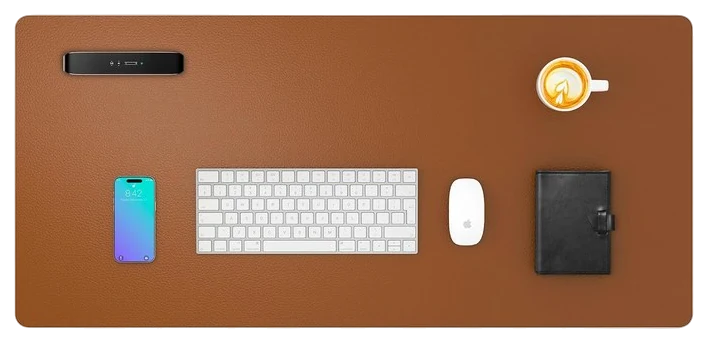
Aothia Leather Desk Pad$16–36The Aothia leather desk pad, $16–36 depending on size — the cheapest change here, and the one noticed every single morning.Check price
Bigger budget
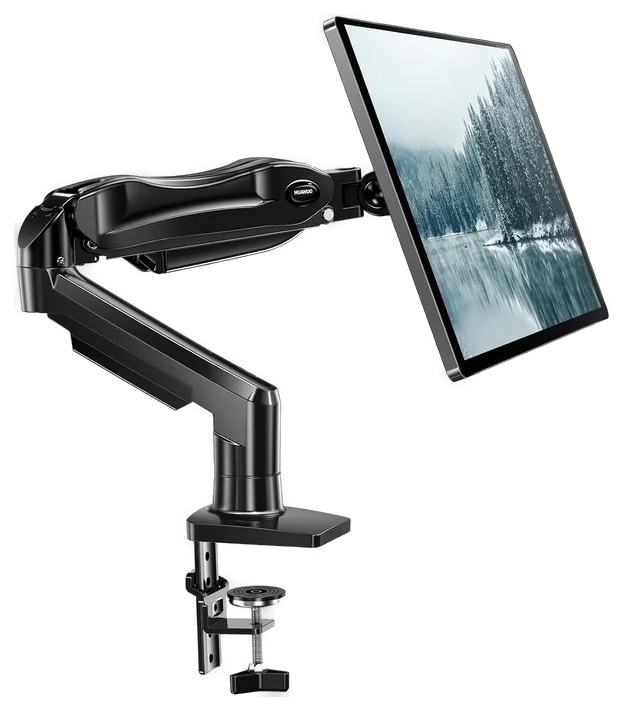
HUANUO Monitor Arm$30–60HUANUO monitor arm, $30–60 — the biggest postural win per dollar.Check price
For the mouse
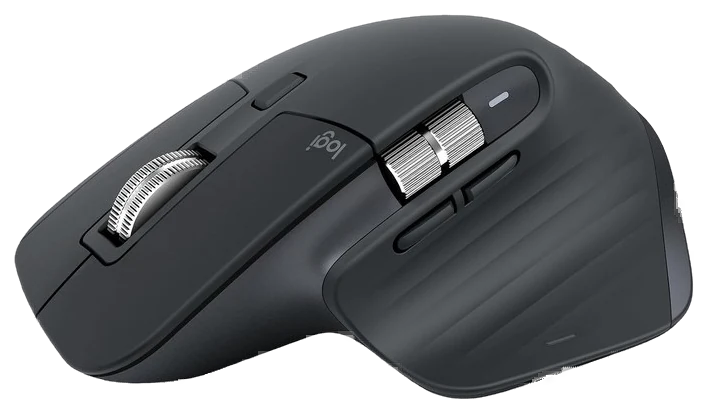
Logitech MX Master 3S$90–110Logitech MX Master 3S, $90–110 — buy what gets touched daily, not what looks impressive on a call.Check price
Home offices get built once and then never improved, because nothing in them is broken enough to justify a purchase. That is exactly the gap a gift fills.
How we choseWhat we compared, and how we rank
Every pick here already earned a recommendation in our office guides. For a gift list we applied a second filter: is it touched every working day, and does it need no measuring, no sizing and no compatibility check — the same standard behind our guide to gifts for parents balancing work and home. Nothing that requires knowing their desk dimensions. Prices are always moving, so every button and link pulls the live listing.
How we rank
Published specifications, verified owner reviews, and independent safety or standards data where it applies — weighted the same for every pick, never sponsored placement.
What changed1 dated note · latest 5 September 2026
CorrectedThe Aothia desk pad carried a “Best under $25” badge while its own range runs $16–36 by size; the badge now says under $40. Logged on the corrections page.
Dated notes already published on this page, newest first. Every correction we make is logged on the corrections page.
Each bar is an estimated price range, on one scale from ~$16 to ~$110.
Pick 1 of 6: No. 1Best under $40
1
Aothia Leather Desk Pad
Top pickBest under $40
The cheapest way to make a desk look deliberate
Get it if you want the safest small gift here. It is the cheapest thing on the page and the only one whose effect is visible the moment it is unrolled.
Skip it if they want genuine leather that patinas, which costs several times this and is a different purchase.
This is the highest aesthetics-per-dollar object we cover anywhere on the site, which makes it an unusually good gift. The Aothia desk pad defines a warm, deliberate workspace on any surface, softens the edge under the wrists, quiets a keyboard, and hides every scratch and coffee ring the desk has collected. The before and after is immediate.
It is dual-sided with a different color on each face, so a recipient whose taste you are unsure of gets two chances, which is unusually forgiving for something this visible. The base grips rather than sliding, the surface wipes clean with a damp cloth, and sizes run to 36 inches, enough to sit under keyboard, mouse and forearms as one continuous surface. One honesty note to pass on: PU leather is polyurethane rather than hide, so it will not develop a patina. It stays exactly as it looks, which at this price is the point rather than a failing.
Strengths
Immediate visible improvement to any desk
Two colors in one pad, so taste is less of a gamble
Softer wrists and a quieter keyboard
Tradeoffs
Polyurethane, not hide, and will not age
Can arrive with roll-curl for a day
A hot mug can mark it
Pick 2 of 6: No. 2Most overdue
2
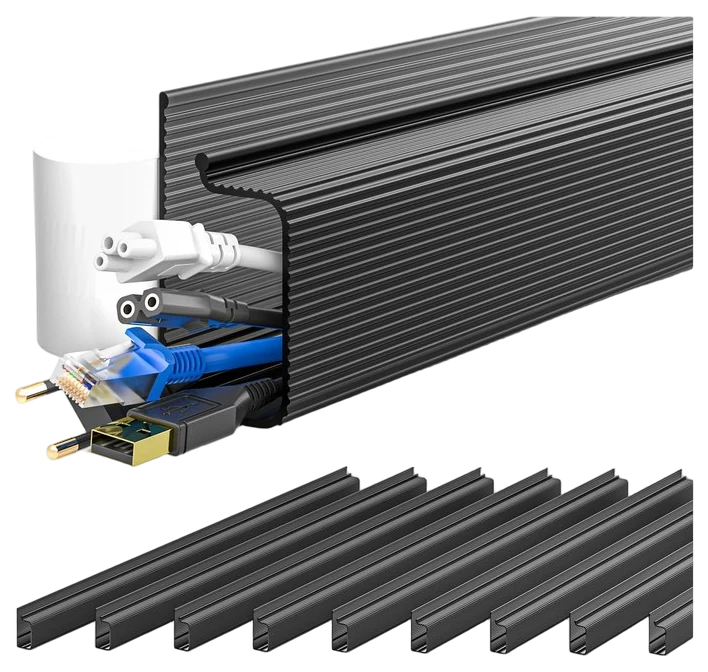
YECAYE Cable Management
Most overdue
The fix for the thing behind the desk nobody photographs
Get it if their video call background is a cable nest
Skip it if they would rather drill for screw-mounted trays
Cable chaos is the last boss of every desk setup, and it is the one thing on a home-office video call that everybody notices and nobody fixes. The YECAYE cable management kit is the lazy-correct solution: adhesive J-channel raceways that press onto the underside of the desk lip, swallow the cables and disappear. No drilling, and no zip-tie archaeology six months later when a monitor gets swapped.
The design suits renters and standing-desk owners especially. Everything mounts with adhesive strips so no holes go into the furniture, and on a sit-stand desk the channels ride the desktop, which means the whole loom travels with the lift instead of snagging. Mount the power strip in a channel and only one cable moves between wall and desk. Two cautions worth passing on. The adhesive is committed, and on laminate or veneer removal can pull finish, so it wants warming gently if it ever comes down. And power bricks are too fat for the channel and need a tray instead.
Strengths
No drilling, so it works in a rental
The whole loom travels with a standing desk
Open channel, so rerouting takes seconds
Tradeoffs
Adhesive can pull finish off laminate on removal
Power bricks will not fit inside
Unglamorous to unwrap
Pick 3 of 6: No. 3Biggest postural win
3
HUANUO Monitor Arm
Biggest postural win
The cheapest fix for the neck angle everyone blames on their chair
Get it if their monitor still sits on its factory stand. For the price of a decent dinner it fixes the neck angle they have been blaming on their chair.
Skip it if they run a heavy 32 inch ultrawide, which wants a higher-rated arm than this one.
Monitor stands ship with every display and put the screen exactly where a neck does not want it, which is too low, on a pedestal that eats desk space. The HUANUO monitor arm fixes both problems with one clamp, and under $60 nothing else articulates this smoothly. Neck angle drives most of the desk-body complaints people blame on their chair, which makes this the cheapest intervention with the biggest postural payoff.
The gas spring is the whole trick. The monitor floats to true eye level, tilts, rotates to portrait for reading, and pulls forward for detail work, then glides back with one hand. It clamps or grommet-mounts to the desk edge, fits 13 to 32 inch panels and routes cables through the arm itself, so the back of the desk goes quiet.
The reclaimed square foot where the old stand sat is the bonus nobody expects to enjoy. The catch lives at the spec-sheet edges: ultrawides over roughly 17 lb want a higher-rated arm, and thin or glass desktops need the reinforcement plate seated carefully.
Strengths
Fixes the neck angle chairs get blamed for
Frees the square foot the old stand occupied
Routes cables through the arm
Tradeoffs
Ultrawides over ~17 lb need a higher-rated arm
Glass desktops need care with the reinforcement plate
Needs a clampable desk edge
Also on the shortlist
Three more, in brief
Pick 4 of 6: No. 4Best keyboard
4
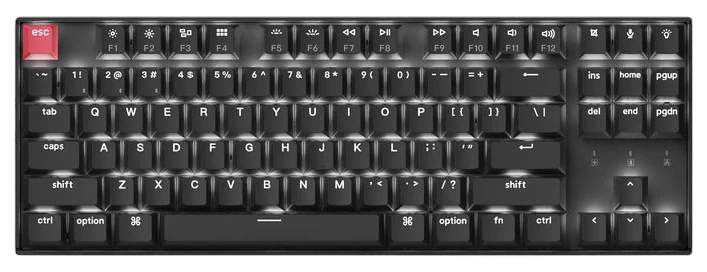
Keychron K8
Best keyboard
The low-risk door into mechanical keyboards
Get it if they type all day on a keyboard that came free
Skip it if they share a room with someone on calls
Typing is the primary physical act of most desk jobs, and most people do it on whatever keyboard came free with something. The Keychron K8 owns the on-ramp into mechanical keyboards: real switches, wireless to three devices, native Mac and Windows layouts, and hot-swap sockets that change the feel without soldering, at roughly a third of enthusiast pricing.
The upgrade registers hundreds of times a day rather than once, which is the test this whole page is built on. Better feedback, less bottoming-out fatigue, and a board that survives decades of it.
The hot-swap sockets matter more than they sound for a gift, because they mean the recipient’s preferences can evolve without buying another keyboard, so a switch choice you guessed at is not a permanent mistake. Tom’s Hardware, reviewing the K8 Pro, found those sockets grip tightly enough that pulling a switch takes real force and a proper puller, which is worth saying rather than letting them find out.
One thing to be straight about: mechanical means audible. Brown switches are noticeable on a call and blue switches are a declaration of war on anyone in the same room.
Strengths
Hot-swap sockets, so a wrong switch guess is fixable
Get it if they type all day on a keyboard that came free
Skip it if they share a room with someone on calls
Typing is the primary physical act of most desk jobs, and most people do it on whatever keyboard came free with something. The Keychron K8 owns the on-ramp into mechanical keyboards: real switches, wireless to three devices, native Mac and Windows layouts, and hot-swap sockets that change the feel without soldering, at roughly a third of enthusiast pricing.
Read the full case
The upgrade registers hundreds of times a day rather than once, which is the test this whole page is built on. Better feedback, less bottoming-out fatigue, and a board that survives decades of it.
The hot-swap sockets matter more than they sound for a gift, because they mean the recipient’s preferences can evolve without buying another keyboard, so a switch choice you guessed at is not a permanent mistake. Tom’s Hardware, reviewing the K8 Pro, found those sockets grip tightly enough that pulling a switch takes real force and a proper puller, which is worth saying rather than letting them find out.
One thing to be straight about: mechanical means audible. Brown switches are noticeable on a call and blue switches are a declaration of war on anyone in the same room.
Strengths
Hot-swap sockets, so a wrong switch guess is fixable
Wireless across three devices
Native Mac and Windows layouts
Tradeoffs
Audible, which matters on calls
Heavier than a membrane board
Switch choice is a guess unless you ask
Pick 5 of 6: No. 5Best mouse~$90–110
5
Logitech MX Master 3S
Upgrade pickBest mouse
The mouse professionals refuse to give back
Get it if they use a cheap mouse for eight hours a day
The MX Master line has been the default answer to best productivity mouse for a decade, and the MX Master 3S refines the formula rather than reinventing it: near-silent clicks, an 8K sensor, and a sculpted shape that hands settle into by about day two. Gizmodo said as much in the headline of its review, that Logitech had taken the best wireless productivity mouse and made it better, and the line has held that position across successive generations rather than in one good year.
The electromagnetic MagSpeed wheel is the signature feature. Logitech rates it at a thousand lines a second in free-spin mode, which is what lets one flick clear a long spreadsheet before the wheel clicks back into line-by-line precision, and that one mechanism is what converts people permanently. Switching control across three computers does the same for anyone working across a laptop and a desktop.
Two limits. It is right-handed only, which is a hard stop rather than a preference, so check before buying. And its depth is unlocked through Logitech’s configuration app, so a recipient who never installs it gets a good mouse rather than a great one.
Strengths
Wheel that flies through long documents then clicks to precision
Get it if they use a cheap mouse for eight hours a day
Skip it if they are left-handed
The MX Master line has been the default answer to best productivity mouse for a decade, and the MX Master 3S refines the formula rather than reinventing it: near-silent clicks, an 8K sensor, and a sculpted shape that hands settle into by about day two. Gizmodo said as much in the headline of its review, that Logitech had taken the best wireless productivity mouse and made it better, and the line has held that position across successive generations rather than in one good year.
Read the full case
The electromagnetic MagSpeed wheel is the signature feature. Logitech rates it at a thousand lines a second in free-spin mode, which is what lets one flick clear a long spreadsheet before the wheel clicks back into line-by-line precision, and that one mechanism is what converts people permanently. Switching control across three computers does the same for anyone working across a laptop and a desktop.
Two limits. It is right-handed only, which is a hard stop rather than a preference, so check before buying. And its depth is unlocked through Logitech’s configuration app, so a recipient who never installs it gets a good mouse rather than a great one.
Strengths
Wheel that flies through long documents then clicks to precision
Works across three computers
Near-silent clicks, unlike most office mice
Tradeoffs
Right-handed only, with no left-handed version
Needs the app installed to reach its depth
Heavier than a travel mouse
Pick 6 of 6: No. 6Best for evenings
6
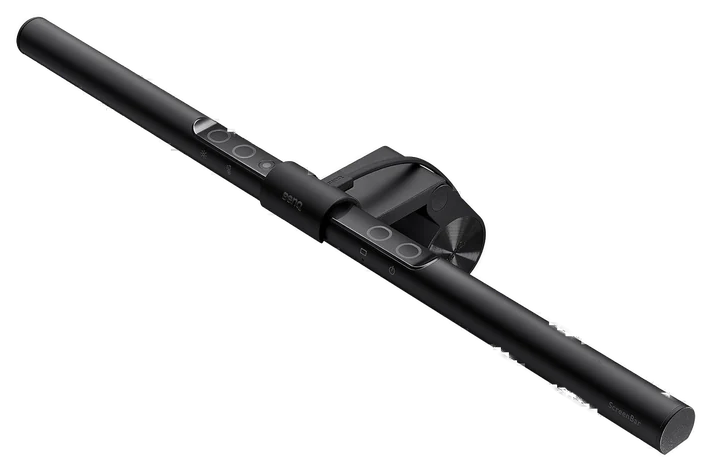
BenQ ScreenBar Monitor Light
Best for evenings
The one purchase evening workers describe as cannot-go-back
Get it if they work evenings and end the day with tired eyes. It is the biggest spend on this page and the one evening workers describe as impossible to give up.
Skip it if they only ever work in a bright room by day, where the payoff shrinks to almost nothing.
Late-night desk lighting is a lose-lose between glare and darkness: a desk lamp lights the desk and the screen, and no lamp leaves you squinting at a bright rectangle in a dark room. The BenQ ScreenBar ends the compromise, because its asymmetric optics light the desk and paperwork while sending effectively nothing at the screen. That is the trick no ordinary lamp manages, and How-To Geek’s testing of the Pro version of the same optical design confirmed it: a wide, even pool of light on the desk with no reflection thrown back off the panel.
It sounds like an indulgence until someone works an evening under one. No reflections, no eye-strain gloom, and no desk lamp footprint, since it clips to the top of the monitor and takes no desk space at all. Its following among programmers and editors is earned rather than marketed, and an auto-dimming sensor handles the adjustment so nobody has to think about it.
The honest objection is the price: it is $100 and up for a light, and if the recipient works in a bright room by day the payoff shrinks a lot. Webcam owners should also check clearance, since both want the same monitor-top real estate.
Strengths
Lights the desk with no glare on the screen
Takes no desk space
Auto-dimming, so it needs no fiddling
Tradeoffs
Expensive for a light
Much less useful if they only work in daylight
Competes with a webcam for monitor-top space
Pick 6 of 6: No. 6Best for evenings
BenQ ScreenBar Monitor Light
The one purchase evening workers describe as cannot-go-back
Get it if they work evenings and end the day with tired eyes. It is the biggest spend on this page and the one evening workers describe as impossible to give up.
Skip it if they only ever work in a bright room by day, where the payoff shrinks to almost nothing.
Late-night desk lighting is a lose-lose between glare and darkness: a desk lamp lights the desk and the screen, and no lamp leaves you squinting at a bright rectangle in a dark room. The BenQ ScreenBar ends the compromise, because its asymmetric optics light the desk and paperwork while sending effectively nothing at the screen. That is the trick no ordinary lamp manages, and How-To Geek’s testing of the Pro version of the same optical design confirmed it: a wide, even pool of light on the desk with no reflection thrown back off the panel.
Read the full case
It sounds like an indulgence until someone works an evening under one. No reflections, no eye-strain gloom, and no desk lamp footprint, since it clips to the top of the monitor and takes no desk space at all. Its following among programmers and editors is earned rather than marketed, and an auto-dimming sensor handles the adjustment so nobody has to think about it.
The honest objection is the price: it is $100 and up for a light, and if the recipient works in a bright room by day the payoff shrinks a lot. Webcam owners should also check clearance, since both want the same monitor-top real estate.
Strengths
Lights the desk with no glare on the screen
Takes no desk space
Auto-dimming, so it needs no fiddling
Tradeoffs
Expensive for a light
Much less useful if they only work in daylight
Competes with a webcam for monitor-top space
The best work-from-home gifts are the things they touch every day but never get around to upgrading.
Use the everyday test: pick something in reach during every work session — keyboard, mouse, light, desk surface.
No measuring required: avoid anything that depends on their space or setup you’d have to guess at.
Skip the big furniture: desks and chairs are too personal and too size-dependent to surprise someone with.
Upgrade what’s already there: the win is making a daily tool nicer, not adding more clutter.
Standing desks: size, space, and budget are the buyer’s call — too big to pick for someone.
Office chairs: fit is personal, and most people want to sit in one before committing.
Desk plants and decor: a plant is one more thing to keep alive, and taste in decor varies.
Novelty mugs and desk toys: they’re a laugh for a day, then they take up desk space.
Home office gifting questions
6 common questions, answered.
What is the best home office gift under $50?
The desk pad or the cable kit, and they pair well for about $45 together. Both are things people notice daily and never buy for themselves, neither needs any measuring, and neither can be the wrong size. If you only pick one, the desk pad is the more visible upgrade.
What should I avoid buying for someone’s home office?
Anything sized to their desk or body without knowing the measurements, which rules out chairs, desks and most footrests. Also avoid anything requiring compatibility knowledge you do not have, like a dock for a laptop model you are guessing at. A wrong-fit chair is the single most returned home-office gift.
Is a chair a better gift than any of these?
A good chair beats everything on this page for someone who sits eight hours a day, and it is also the hardest thing to buy for another person. Fit depends on their height, their desk height and their build, and the good ones are expensive enough that a wrong guess is painful. If a chair is the right gift, giving them the budget to choose one is better than choosing it for them.
Do any of these need setup?
Only the monitor arm, and it is a fifteen-minute job with a clamp rather than anything structural. The keyboard and mouse pair over Bluetooth, the light clips on and draws power from a USB port, and the pad and cable kit need nothing at all. Nothing here requires an account or a subscription.
Keyboard or mouse first?
Mouse, for most people. The hand is on it more or less constantly, whereas typing is bursty, and there is no noise consideration. The keyboard is the better gift for someone who writes or codes all day, and the worse one for someone who shares a room with a person on calls.
When does this gear discount?
Peripherals discount hard from late November through Cyber Monday, and the mouse and keyboard in particular see real cuts then. The budget picks run on-page coupons year-round, so check for the coupon box before paying list. The monitor light discounts least often, so a modest cut on it is worth taking.
Sources
Who the write-ups above lean on, and where each one is cited.
Tom’s HardwareCited for Keychron K8, and in the buying advice.
GizmodoCited for Logitech MX Master 3S, and in the buying advice.
5Sep 2026Correction, 5 September 2026The Aothia desk pad carried a “Best under $25” badge while its own range runs $16–36 by size; the badge now says under $40. Logged on the corrections page.Every correction we’ve made ›
Prices on this page are re-checked weekly — see the full Gifts price index for every product we cover.
Keep reading
Where to go next.
Related guides, then every guide in the department.
New guides, re-ranked picks and the month's notable changes. No weekly filler, ever.
Unsubscribe any time. Your address goes to our newsletter provider and nowhere else — see our privacy policy.
Manage Consent
To provide the best experiences, we use technologies like cookies to store and/or access device information. Consenting to these technologies will allow us to process data such as browsing behavior or unique IDs on this site. Not consenting or withdrawing consent, may adversely affect certain features and functions.
Functional
Always active
The technical storage or access is strictly necessary for the legitimate purpose of enabling the use of a specific service explicitly requested by the subscriber or user, or for the sole purpose of carrying out the transmission of a communication over an electronic communications network.
Preferences
The technical storage or access is necessary for the legitimate purpose of storing preferences that are not requested by the subscriber or user.
Statistics
The technical storage or access that is used exclusively for statistical purposes.The technical storage or access that is used exclusively for anonymous statistical purposes. Without a subpoena, voluntary compliance on the part of your Internet Service Provider, or additional records from a third party, information stored or retrieved for this purpose alone cannot usually be used to identify you.
Marketing
The technical storage or access is required to create user profiles to send advertising, or to track the user on a website or across several websites for similar marketing purposes.