The Best Monitors and Docks:Fixing Desk Posture First
A laptop alone is an ergonomic trap. We compared panel quality, dock reliability, and thousands of work-from-home reviews to build the definitive external-setup shortlist.
By the BYB Editorial Team
Published July 28, 2026 · Prices checked OctoberOct 5, 2026
A laptop alone is an ergonomic trap. We compared panel quality, dock reliability, and thousands of work-from-home reviews to build the definitive external-setup shortlist.
How we choseWhat we compared, and how we rank
We compiled panel testing, dock reliability reports, and verified work-from-home owner reviews across the category. Prices are always moving, so every button and link pulls the live listing.
How we rank
Published specifications, verified owner reviews, and independent safety or standards data where it applies — weighted the same for every pick, never sponsored placement.
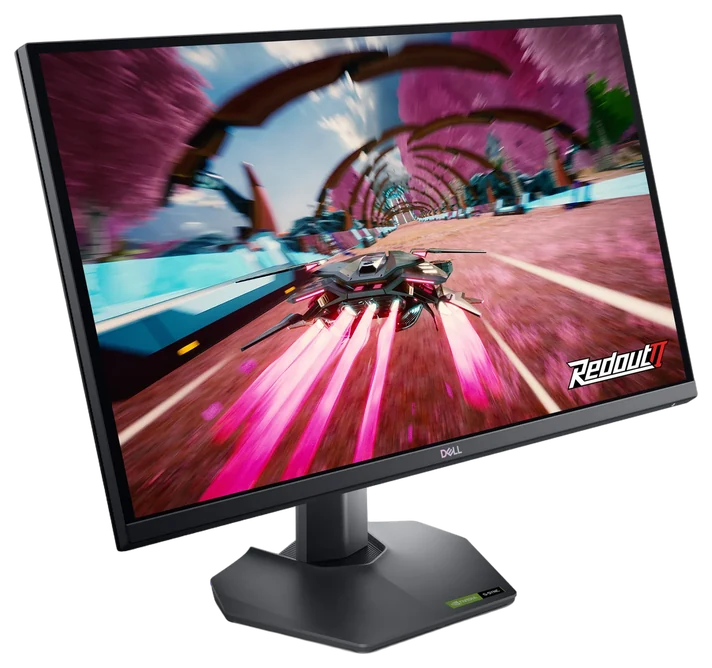
Dell’s 27-inch QHD G-series is the consensus just-buy-this monitor: 1440p is the right resolution at 27 inches, IPS keeps colors honest for documents and photos, and 165Hz makes everything, scrolling included, feel expensive.
The height-adjustable stand alone beats most rivals’ wobbling tilt-only bases, and Dell’s warranty (advanced exchange, real dead-pixel coverage) is the ownership-experience moat the value brands don’t match. Slim bezels make an eventual second-monitor pairing painless, which is exactly how most owners end up.
HDR is nominal, as with most IPS panels at this tier. Buy it for work-plus-play excellence, not cinema. At $140–200 on Amazon, it anchors the workstation and covers the gaming evening equally.
Strengths
Right resolution, right size
165Hz smooths everything
Height-adjustable stand included
Dell’s class-leading warranty
Tradeoffs
Nominal HDR
No USB-C input at this tier
Understated office looks
Pick 2 of 5: No. 2Best dock
2
Anker Nano Docking Station (13-in-1)
Best dock
The one-cable office
Get it if a laptop is your desktop and cables are the enemy, for $110–150.
Skip it if you run two 4K monitors, that tier costs more.
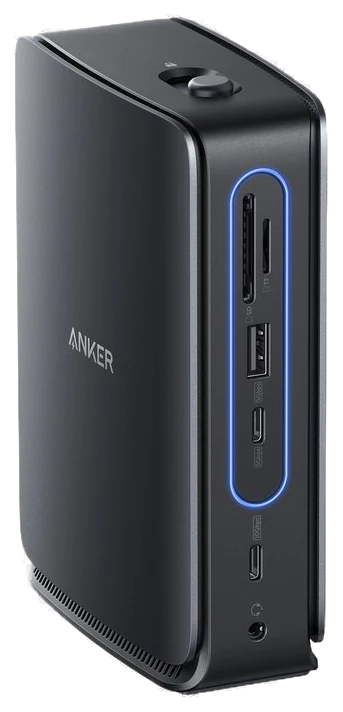
The dock is what turns a laptop into a workstation, and Anker’s Nano Docking Station does it with thirteen ports for about $112 on Amazon against a $149.99 list. One cable carries up to 100 watts back to the laptop, and unusually for this price the 140-watt power brick is in the box rather than sold separately. The rest is gigabit ethernet, SD and microSD readers, three USB-A ports, two more USB-C, and video out over two HDMI and a DisplayPort. A six-port section of the dock detaches and travels on its own.
The homework in this category is display protocol, and this one answers it plainly: native DisplayPort alt mode with MST, not DisplayLink, so there is nothing to install, but the video bandwidth is shared out. One monitor runs 4K at 60Hz, two run 1440p at 60Hz, three run 1080p. The catch worth knowing before you buy is Apple: because Apple Silicon does not support MST, a MacBook mirrors those screens rather than extending them, and charging and data are unaffected. Fstoppers called it a clever answer to a real problem, and owner reviews are broadly positive.
Strengths
Thirteen ports on one cable
100W charging, 140W brick included
No drivers, native alt mode
Hub section detaches for travel
Tradeoffs
Macs mirror, they do not extend
Two monitors cap at 1440p
Card reader is UHS-I speed
Pick 3 of 5: No. 3Best under $50~$30–50
3
HUANUO Single Monitor Arm
Budget pickBest under $50
The desk-space liberator
Get it if your neck files complaints by afternoon, and $30–50 fixes it.
Skip it if your monitor’s stand already hits perfect height, rare.
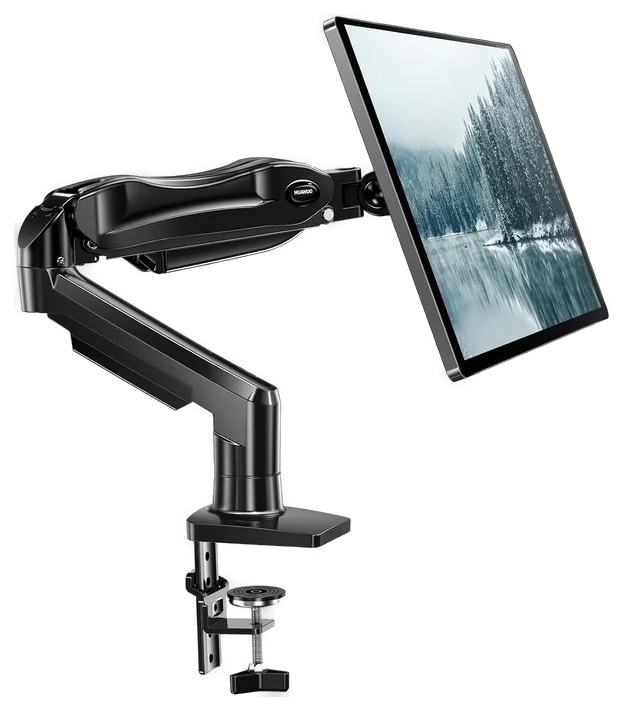
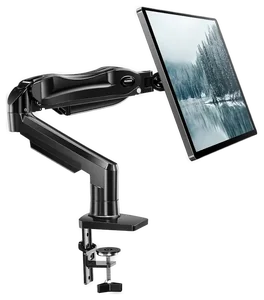
Monitor stands force the monitor’s idea of correct height on your spine. The HUANUO gas-spring arm inverts that for $40: eye level exactly where your neck needs it, plus the entire stand footprint back as usable desk.
It became the budget default with review scores that embarrass arms at three times the price: smooth gas-spring motion, full rotation to portrait, cable routing along the arm, and a clamp that fits desks up to typical thickness. PCWorld has repeatedly picked HUANUO’s gas-spring arms as its budget recommendation, testing models in this same class rated for 13 to 32 inch monitors up to 20 pounds.
Heavy ultrawides exceed its rating (check the weight spec), and the clamp wants a solid desk edge. At $30–50 on Amazon, it’s the highest posture-improvement-per-dollar on the page.
Strengths
Eye height your spine chooses
Reclaims the stand’s footprint
Smooth gas-spring motion
Embarrasses triple-price arms
Tradeoffs
Weight limits vs. big ultrawides
Needs a clampable edge
One-time fiddly tension setup
Also on the shortlist
Two more, in brief
Pick 4 of 5: No. 4Best desk light
4
BenQ ScreenBar Monitor Light
Best desk light
The eye-strain ender
Get it if evenings at the desk are part of your life, for around $100.
Skip it if you work in daylight. The sun remains free.
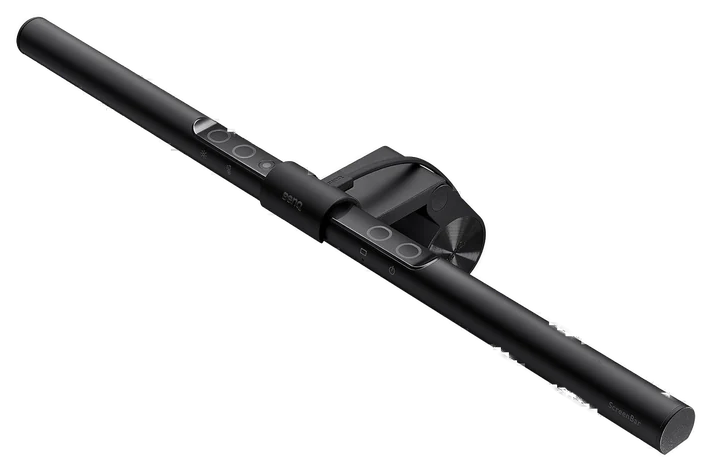
Late-night desk lighting is a lose-lose between glare and darkness, the BenQ ScreenBar’s asymmetric optics light the desk while sending zero lux at the screen, ending the compromise.
It sounds like an indulgence until you work an evening under one: no reflections, no eye-strain gloom, no desk lamp footprint. Its cult following among programmers and editors is earned, and the auto-dimming sensor handles the thinking. It clips to any monitor top in seconds, powered by a spare USB port, no assembly, no desk drilling.
It’s $100-plus for a light, the honest objection. At $100–130 on Amazon, it’s the workstation’s quality-of-life sleeper, the upgrade evening workers rate far above its job description.
Get it if evenings at the desk are part of your life, for around $100.
Skip it if you work in daylight. The sun remains free.
Late-night desk lighting is a lose-lose between glare and darkness, the BenQ ScreenBar’s asymmetric optics light the desk while sending zero lux at the screen, ending the compromise.
Read the full case
It sounds like an indulgence until you work an evening under one: no reflections, no eye-strain gloom, no desk lamp footprint. Its cult following among programmers and editors is earned, and the auto-dimming sensor handles the thinking. It clips to any monitor top in seconds, powered by a spare USB port, no assembly, no desk drilling.
It’s $100-plus for a light, the honest objection. At $100–130 on Amazon, it’s the workstation’s quality-of-life sleeper, the upgrade evening workers rate far above its job description.
Strengths
Zero screen reflection, by design
Auto-dimming sensor
No desk footprint at all
Evening-work cult following
Tradeoffs
Real money for a lamp
Curved monitors check fit
USB power cable to route
Pick 5 of 5: No. 5The decade stand
5
Rain Design mStand
The decade stand
The laptop riser classic
Get it if the laptop works beside the monitor daily, for $40–60.
Skip it if the laptop stays closed in a drawer, clamshell life.
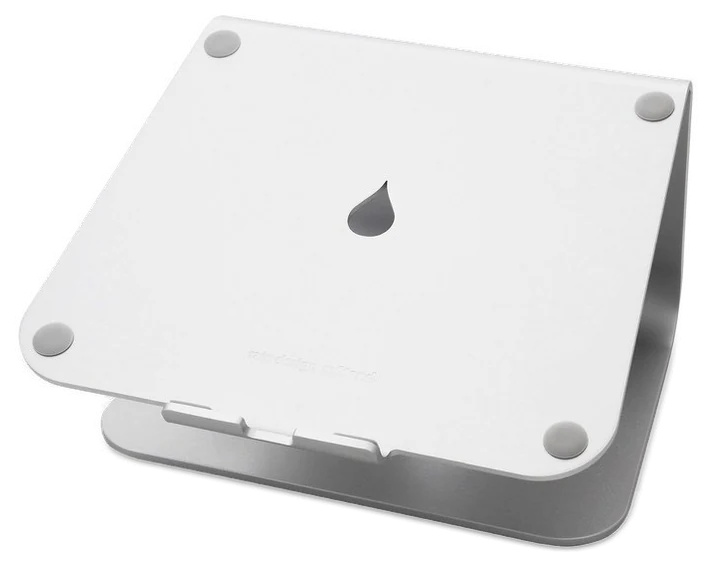
If the laptop stays open next to the monitor, it belongs at matching eye height. The Rain Design mStand has been the category benchmark for over a decade because there is nothing left to improve.
One piece of thick sandblasted aluminum, the correct angle, a cable slot, zero wobble. Owners report buying it once and using it through four laptops, which is the entire review summarized. Wirecutter’s Kimber Streams recommends it as the fixed-angle option for anyone who finds the pricier iLevel 2 stand overkill, and long-term testing found the sliding mechanism still sturdy and smooth despite light cosmetic wear. The raised deck also improves laptop cooling, a quiet bonus during long compile-or-render afternoons.
It doesn’t fold for travel and its MacBook-matched finish is cosmetic rather than functional (every laptop fits). At $40–60 on Amazon, it’s the buy-once bookend of the two-screen desk.
Get it if the laptop works beside the monitor daily, for $40–60.
Skip it if the laptop stays closed in a drawer, clamshell life.
If the laptop stays open next to the monitor, it belongs at matching eye height. The Rain Design mStand has been the category benchmark for over a decade because there is nothing left to improve.
Read the full case
One piece of thick sandblasted aluminum, the correct angle, a cable slot, zero wobble. Owners report buying it once and using it through four laptops, which is the entire review summarized. Wirecutter’s Kimber Streams recommends it as the fixed-angle option for anyone who finds the pricier iLevel 2 stand overkill, and long-term testing found the sliding mechanism still sturdy and smooth despite light cosmetic wear. The raised deck also improves laptop cooling, a quiet bonus during long compile-or-render afternoons.
It doesn’t fold for travel and its MacBook-matched finish is cosmetic rather than functional (every laptop fits). At $40–60 on Amazon, it’s the buy-once bookend of the two-screen desk.
Strengths
Benchmark for a decade straight
Single-piece zero-wobble build
Outlives multiple laptops
Cable slot keeps order
Tradeoffs
Doesn’t fold or travel
One fixed angle
Premium over bendy-wire stands
Build the desk around how you work, because the specs that matter for gaming aren’t the ones that matter for spreadsheets.
Right-size the panel: 27 inches at 1440p is the sweet spot for most desks; the common mistake is chasing 4K on a small screen your laptop can barely drive.
Pick the panel type for the job: IPS gives you accurate color for work, and a high refresh rate only pays off if you game, so don’t pay for speed you won’t see.
Make the dock match your laptop: check it delivers the charging wattage and the display outputs your machine needs, and know whether you have true Thunderbolt or plain USB-C.
Don’t skip ergonomics: a VESA mount and an arm rated for your monitor’s weight turn a good screen into a comfortable one, so confirm the weight range before buying.
LG UltraGear 27GP850-B — a faster 1440p Nano IPS panel, but it’s pricier than the Dell and aimed at gamers more than everyday desk work.
CalDigit TS4 — a superb 18-port Thunderbolt 4 dock, left off because at around $400 it costs more than most people’s monitor.
Dell UltraSharp U2723QE — a gorgeous 4K IPS Black screen with a built-in USB-C dock, but it’s roughly double the price of the Dell we picked.
Ergotron LX arm — the monitor arm to buy for life, but it’s three to four times the HUANUO’s price for the same basic job.
Monitor and dock FAQs
6 common questions, answered.
Is 1440p enough, or should I get 4K?
At 27 inches, 1440p is the sharpness-per-dollar sweet spot and drives easily over any dock. 4K earns its premium at 32 inches or for detailed photo and video work. Expect to pay roughly double for a good panel.
Why do docks have such mixed reviews?
Chipset quality varies wildly, and failures show up as monitors not waking or Ethernet dropping. Sticking to Anker, CalDigit, and other first-tier brands is the reliable filter. This is the category where the cheap option costs you mornings.
Do monitor arms fit every desk?
Most desks, yes — check your desk’s rear edge for clamp overhang or a grommet hole first. Verify your monitor’s weight and VESA pattern (usually 75 or 100 mm). The HUANUO covers the common range.
What order should I build this workstation in?
By pain solved per dollar: the monitor first (the screen is the job), the arm second (posture pain is the workstation’s chief complaint, and $40 fixes it), the dock third (one-cable life changes daily friction), then light and stand as the polish layer. Total for the full five-piece build lands around $500–650, roughly one ergonomic chair, and upgrades piecewise as budget allows. Nothing here obsoletes anything else.
Will this setup work with a MacBook and a Windows laptop?
Yes. That’s the point of USB-C docking: the Anker dock feeds either machine (or both, swapped by one cable), the Dell monitor takes any input, and the mStand was practically designed around MacBook proportions while holding anything laptop-shaped. The one asterisk: base M-series MacBooks limit external displays (check your chip’s spec for two-monitor ambitions), a silicon limitation no dock escapes.
What cables matter for this setup?
The three that bite: the dock-to-laptop cable must be full-featured USB-C (Thunderbolt or 10Gbps data + 100W, the flimsy charge-only cable in your drawer will ‘work’ with mysterious failures), monitor connections want the DisplayPort cable in the monitor’s box over HDMI archaeology, and everything else routes through the arm’s cable channel. When a dock ‘flakes,’ the cable is the suspect 80% of the time; replace it before the dock.
Prices on this page are re-checked weekly — see the full Office price index for every product we cover.
Keep reading
Where to go next.
Related guides, then every guide in the department.
New guides, re-ranked picks and the month's notable changes. No weekly filler, ever.
Unsubscribe any time. Your address goes to our newsletter provider and nowhere else — see our privacy policy.
Manage Consent
To provide the best experiences, we use technologies like cookies to store and/or access device information. Consenting to these technologies will allow us to process data such as browsing behavior or unique IDs on this site. Not consenting or withdrawing consent, may adversely affect certain features and functions.
Functional
Always active
The technical storage or access is strictly necessary for the legitimate purpose of enabling the use of a specific service explicitly requested by the subscriber or user, or for the sole purpose of carrying out the transmission of a communication over an electronic communications network.
Preferences
The technical storage or access is necessary for the legitimate purpose of storing preferences that are not requested by the subscriber or user.
Statistics
The technical storage or access that is used exclusively for statistical purposes.The technical storage or access that is used exclusively for anonymous statistical purposes. Without a subpoena, voluntary compliance on the part of your Internet Service Provider, or additional records from a third party, information stored or retrieved for this purpose alone cannot usually be used to identify you.
Marketing
The technical storage or access is required to create user profiles to send advertising, or to track the user on a website or across several websites for similar marketing purposes.