Six of the Best Home Office Upgrades for Ergonomics and Desk Comfort
Five years into the remote-work era, the gear that matters is settled science: your chair, your desk, your light, and the two things your hands touch all day. These six upgrades have the review records to prove they’re the ones worth buying.
By the BYB Editorial Team
Published July 28, 2026 · Updated · Prices checked OctoberOct 5, 2026
The Branch ergonomic chair, $470–520 — the one people postpone longest.
Order matters more than budget here
Good peripherals bolted to a bad chair fix nothing.
We compiled ergonomics guidance, long-term reviews from remote workers, and expert testing (Wirecutter, RTINGS-adjacent peripherals testing), prioritizing daily-driver durability.How we chose·How we verify·Corrections logged publicly
Five years into the remote-work era, the gear that matters is settled science: your chair, your desk, your light, and the two things your hands touch all day. These six upgrades have the review records to prove they’re the ones worth buying.
How we choseWhat we compared, and how we rank
We compiled ergonomics guidance, long-term reviews from remote workers, and expert testing (Wirecutter, RTINGS-adjacent peripherals testing), prioritizing daily-driver durability. Prices are always moving, so every button and link pulls the live listing.
How we rank
Published specifications, verified owner reviews, and independent safety or standards data where it applies — weighted the same for every pick, never sponsored placement.
What changed1 dated note · latest 23 September 2026
CorrectedFlexiSpot's E7 is no longer listed on Amazon, so the desk pick is now the FlexiSpot E6 Pro at about $350–500. Branch no longer sells its plain Ergonomic Chair; the seat pick is now the Branch Ergonomic Chair Pro at about $470–520.
Dated notes already published on this page, newest first. Every correction we make is logged on the corrections page.
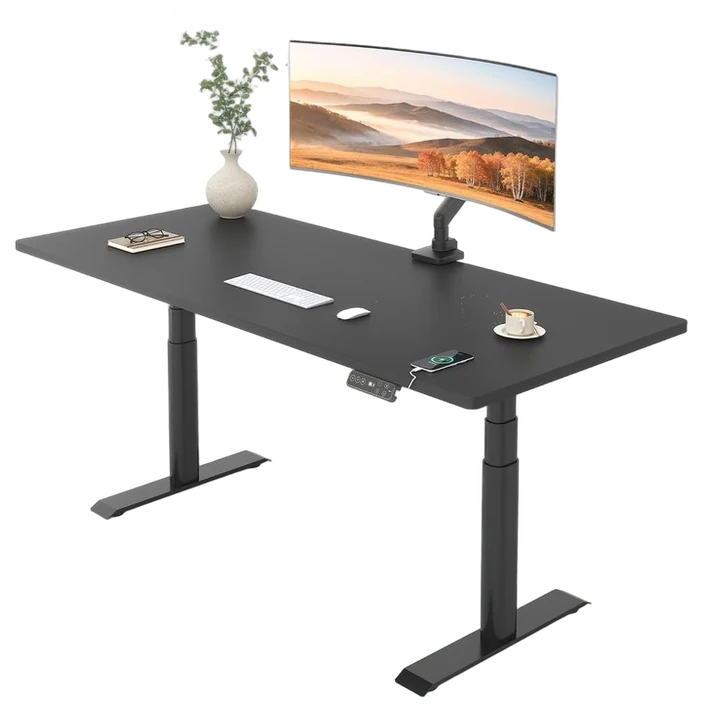
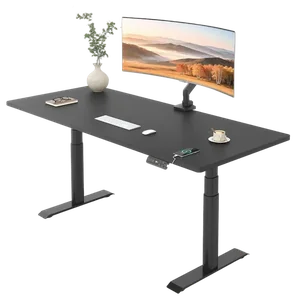
FlexiSpot’s E-series is the consensus answer to “standing desk without the $1,200 price,” and the E6 Pro is the current model to buy: dual motors that lift real monitor setups without drama, a memory-preset control panel, and a 3-stage frame rated to 330 pounds.
The sit-stand rhythm matters more than either posture alone, the research favors alternating, and presets are what make the switch happen: one touch, no friction, position changed. Four programmable presets are enough for a desk two people share, and the motors run under 45 decibels — quiet enough that raising the desk mid-call goes unnoticed. A USB port on the control panel is a handy extra.
The trade for the price is capacity and warranty: it’s rated to 330 pounds, with 5 years on frame and motor (2 years on the electronics). At $350–500 on Amazon, it’s the foundation purchase of the modern home office — where most buyers should start.
Strengths
Dual motors, real load capacity
Presets make switching happen
Quiet motors, under 45 decibels
Well under boutique-brand pricing
Tradeoffs
Tops merely good
Assembly hour required
5-year frame and motor warranty
Pick 2 of 6: No. 2Best seat~$470–520
2
Branch Ergonomic Chair Pro
Upgrade pickBest seat
The task chair sweet spot
Get it if your back files daily 3 p.m. complaints and $470–520 is in budget.
Skip it if budget is $200 — the office-chair guide’s SIHOO M57 is the pick at that price.
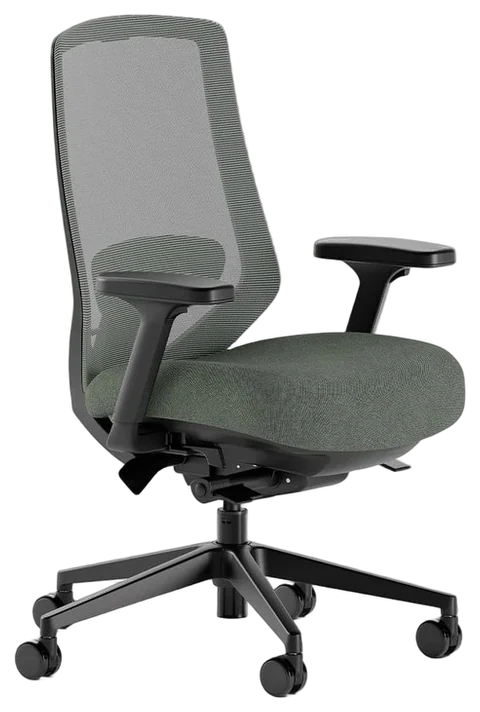
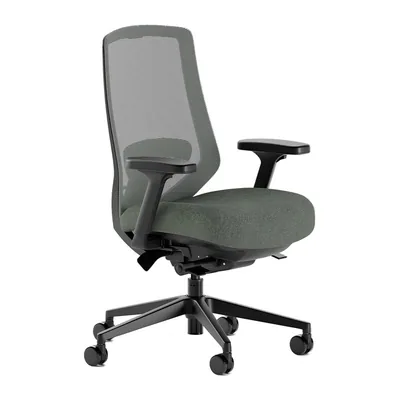
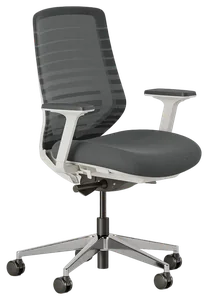
The Branch Ergonomic Chair Pro offers the adjustments that matter — seat depth, two-way lumbar, 5D armrests, forward seat tilt — without the pricing of the design-icon chairs. It has 14 points of adjustment in total and is rated to 275 pounds.
Eight hours a day makes this the highest-stakes purchase in the room: the adjustment set means the chair fits your body rather than an average one, and the seven-year warranty covers the years your back will collect the dividend. The two-way lumbar adjusts vertically and comes out entirely if you’d rather sit without it, and the whole frame meets BIFMA’s commercial-grade standard on low-VOC materials.
Very tall and very small bodies should still check the fit specs before ordering, and the optional headrest costs extra rather than coming standard. At $470–520 direct or on Amazon, it’s the seat most home offices should end their search at.
Strengths
14 points of adjustment that matter
Rivals double-price builds
7-year honest warranty
Livable, unbranded design
Tradeoffs
Optional headrest costs extra
Fit extremes check specs
Pricier than Branch’s base chair
Pick 3 of 6: No. 3Best under $200
3
BenQ ScreenBar Halo
Best under $200
The lighting fix your eyes notice in a day
Get it if evening work sessions are part of the rhythm, at $130–180.
Skip it if daylight hours only. Save it for later.
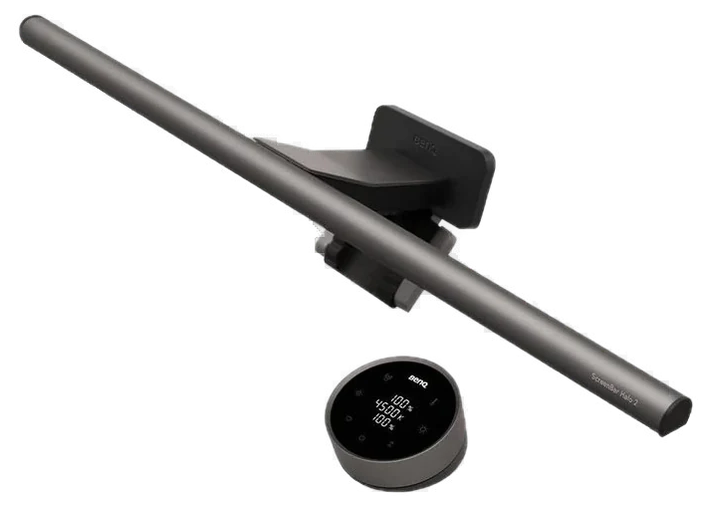
The ScreenBar Halo solves a problem most people never diagnose: overhead lights glare off the screen while the desk sits in shadow. BenQ’s asymmetric optics wash the desk in light with none hitting the panel.
The Halo adds a rear bias light for late nights, depth for the eyes and calm for the room, and the wireless dial on the desk controls it all without reaching. Reviewers describe the same arc: sounds indulgent, becomes essential.
BenQ rates the front light above Ra 95 and tunes it steplessly from 2,700K to 6,500K, and the ambient sensor tops the desk up to 500 lux, the level the American National Standard sets for office work rather than an arbitrary brightness. Two things to know before it arrives: the clamp takes flat panels from 0.7 to 6 centimeters thick, and that lovely dial runs on three AAA batteries you will eventually be replacing.
BenQ now sells a ScreenBar Halo 2 at about $180 alongside this one, and the difference is worth knowing rather than guessing at. The 2 widens the rear light into three zones and lets you set color temperature on the back light as well as the front, where the original only tunes the front, and it adds a presence sensor and USB-C power.
Both clamp monitors up to roughly 2.3 inches thick, and the 2 is explicit about curved panels between 1000R and 1800R, so curved-monitor owners should buy that one. Treat published lux figures with suspicion either way: BenQ claims over 1,000 lux at the center and independent measurement came in around half that. At $130 to $180, it is the quality-of-life multiplier evening workers rate far above its job title.
Strengths
Desk lit, zero screen glare
Rear bias light for nights
Wireless desk dial control
No desk footprint
Tradeoffs
Premium for a lamp
Curved monitors check fit
Dial wants a battery
Also on the shortlist
Three more, in brief
Pick 4 of 6: No. 4Best mouse
4
Logitech MX Master 3S
Best mouse
The productivity mouse benchmark
Get it if spreadsheets, docs, and multi-machine days define work, for $90–110.
Skip it if gaming rules the desk, the gaming-mice guide instead.
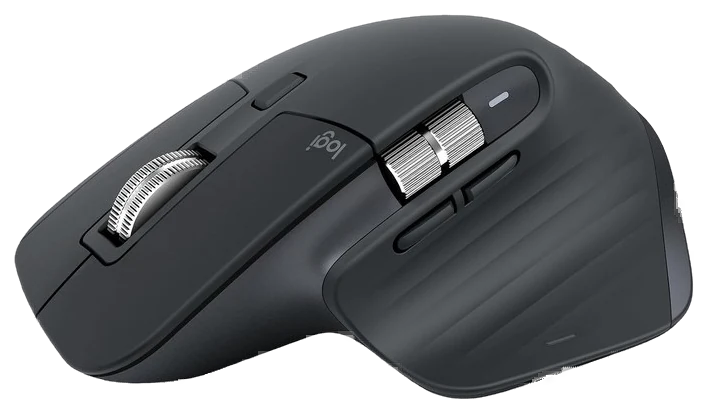
The MX Master line has been the default answer to “best productivity mouse” for a decade, and the MX Master 3S refines the formula: Logitech claims 90 per cent less click noise than the older Master, the sensor tracks at 8,000 DPI and works on glass, and the sculpted shape is the one hands settle into by day two.
The electromagnetic MagSpeed wheel is the signature, it flies through thousand-row spreadsheets and long documents in a flick, then clicks into precision mode, and three-computer control converts multi-machine workers permanently. Battery life is the quiet luxury: about 70 days a charge, and a one-minute top-up over USB-C buys three hours.
TechGearLab weighed it at 141 grams and made it their top mouse of ten tested at 86 out of 100, scoring its tracking 9.9 out of 10. The two marks against it are worth knowing in advance: the horizontal thumb wheel takes noticeably more force than the main one, and there is nowhere on the mouse to stow the receiver when it travels.
It is right-handed only, and its depth lives in the app configuration. There is now an MX Master 4 at $120 which adds haptic feedback in the thumb rest and a radial quick-menu, but it keeps the same shape and the same scroll wheel, so the 3S at $99.99 list and often less remains the better buy unless those two additions appeal. Either way it is the touch-point upgrade professionals refuse to give back.
Get it if spreadsheets, docs, and multi-machine days define work, for $90–110.
Skip it if gaming rules the desk, the gaming-mice guide instead.
The MX Master line has been the default answer to “best productivity mouse” for a decade, and the MX Master 3S refines the formula: Logitech claims 90 per cent less click noise than the older Master, the sensor tracks at 8,000 DPI and works on glass, and the sculpted shape is the one hands settle into by day two.
Read the full case
The electromagnetic MagSpeed wheel is the signature, it flies through thousand-row spreadsheets and long documents in a flick, then clicks into precision mode, and three-computer control converts multi-machine workers permanently. Battery life is the quiet luxury: about 70 days a charge, and a one-minute top-up over USB-C buys three hours.
TechGearLab weighed it at 141 grams and made it their top mouse of ten tested at 86 out of 100, scoring its tracking 9.9 out of 10. The two marks against it are worth knowing in advance: the horizontal thumb wheel takes noticeably more force than the main one, and there is nowhere on the mouse to stow the receiver when it travels.
It is right-handed only, and its depth lives in the app configuration. There is now an MX Master 4 at $120 which adds haptic feedback in the thumb rest and a radial quick-menu, but it keeps the same shape and the same scroll wheel, so the 3S at $99.99 list and often less remains the better buy unless those two additions appeal. Either way it is the touch-point upgrade professionals refuse to give back.
Strengths
Decade-consensus productivity king
MagSpeed wheel devours documents
Silent clicks, 8K sensor
Three-computer flow control
Tradeoffs
Right-handed only
Depth needs software setup
Premium mouse pricing
Pick 5 of 6: No. 5Best keyboard entry~$75–100
5
Keychron K8 V2
Budget pickBest keyboard entry
The mechanical keyboard gateway
Get it if you type all day and deserve better feedback, for $75–100.
Skip it if silence is mandatory. The laptop keyboard survives.
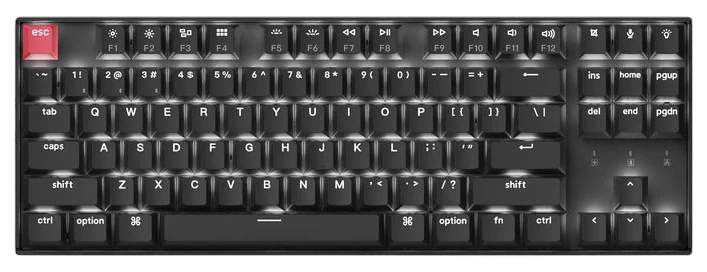
Keychron’s K8 V2 owns the on-ramp to mechanical keyboards, and as of mid-2026 it is the one to buy: the original K8 has all but left Amazon — one white-backlight run aside, listings are used-only — and the V2 keeps the tenkeyless 87-key recipe with Gateron switches, Mac and Windows keycaps in the box, and double-shot PBT caps the original never had. Buy the hot-swappable configuration specifically: on the V2 hot-swap is a paid option rather than the default, and only that version lets you change switches later.
Typing is your job’s primary physical act, and the upgrade registers hundreds of times daily: better feedback, less bottoming-out fatigue, and a board that survives decades of it. The hot-swap sockets mean your preferences can evolve without a new keyboard, with five-pin Cherry, Kailh and NovelKeys stems dropping in alongside Gateron’s. Plan around the lighting too: on this line Keychron’s own battery ratings collapse from roughly 240 hours backlight-off to around 70 with RGB running, so the glow is what you pay for in charging cycles.
Mechanical means audible. Coworkers on calls will hear browns, and blues are a declaration of war. Two limits worth knowing before you spend more: it is a plate mount rather than the gasket mount enthusiasts chase, and while the V2 adds QMK remapping through Keychron’s Launcher — something the original reserved for the K8 Pro and Max — the stabilizers on this line still draw reviewer shrugs, and are cheap to replace later. At $99.99 list and often nearer $75, it is the low-risk door into the hobby that improves the workday.
Get it if you type all day and deserve better feedback, for $75–100.
Skip it if silence is mandatory. The laptop keyboard survives.
Keychron’s K8 V2 owns the on-ramp to mechanical keyboards, and as of mid-2026 it is the one to buy: the original K8 has all but left Amazon — one white-backlight run aside, listings are used-only — and the V2 keeps the tenkeyless 87-key recipe with Gateron switches, Mac and Windows keycaps in the box, and double-shot PBT caps the original never had. Buy the hot-swappable configuration specifically: on the V2 hot-swap is a paid option rather than the default, and only that version lets you change switches later.
Read the full case
Typing is your job’s primary physical act, and the upgrade registers hundreds of times daily: better feedback, less bottoming-out fatigue, and a board that survives decades of it. The hot-swap sockets mean your preferences can evolve without a new keyboard, with five-pin Cherry, Kailh and NovelKeys stems dropping in alongside Gateron’s. Plan around the lighting too: on this line Keychron’s own battery ratings collapse from roughly 240 hours backlight-off to around 70 with RGB running, so the glow is what you pay for in charging cycles.
Mechanical means audible. Coworkers on calls will hear browns, and blues are a declaration of war. Two limits worth knowing before you spend more: it is a plate mount rather than the gasket mount enthusiasts chase, and while the V2 adds QMK remapping through Keychron’s Launcher — something the original reserved for the K8 Pro and Max — the stabilizers on this line still draw reviewer shrugs, and are cheap to replace later. At $99.99 list and often nearer $75, it is the low-risk door into the hobby that improves the workday.
Strengths
Real mechanical at entry price
Mac/Windows native, 3 devices
Hot-swap future-proofing
Decades-durable switches
Tradeoffs
Audible on calls. Pick switches wisely
Tall. Wrist rest helps
Battery life is fine, not epic
Pick 6 of 6: No. 6Best dock
6
Anker Nano Docking Station (13-in-1)
Best dock
The one-cable desk
Get it if a laptop plus monitors is your daily configuration, at $110–150.
Skip it if the laptop works solo, a small hub suffices.
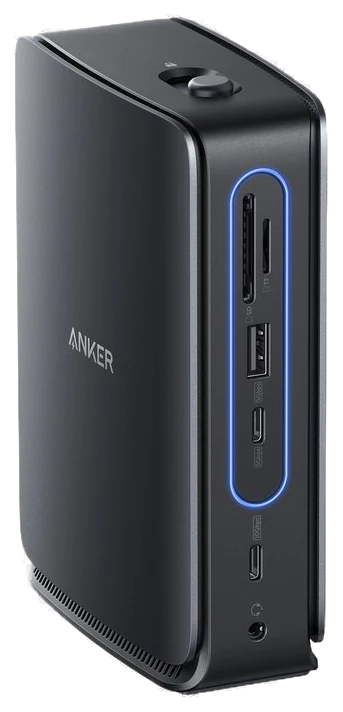
The dock is what turns a laptop into a workstation, and Anker’s 13-in-1 hits the reliability-per-dollar mark the premium Thunderbolt brands charge double for: one USB-C cable connects monitors, ethernet, peripherals, and full-speed charging.
The one-pull disconnect is the lifestyle feature. Leave for the day with a single unplug, return to a workstation that reassembles itself. Anker’s wake-from-sleep reliability record is the moat over the flaky budget tier. SD slots and enough USB ports to retire the dongle pouch round out the everything-connected build. Two findings from PCWorld’s testing shape how you will live with it.
The ethernet is excellent, dropping eight frames out of ten thousand while streaming 4K video, but the front ports are not for phones: they measured 4.5 watts from the USB-A and 7.5 from the USB-C beside it, so charging a handset there is overnight work. The front six-in-one section also detaches and travels as a standalone hub.
The display homework is worth doing before you buy. This dock drives displays over native DisplayPort alt mode, so nothing needs installing, and with DSC it runs two external monitors at a full 4K and 60Hz.
The fine print sits elsewhere: the two rear USB-A ports are 480 Mbps data ports, and how many screens a MacBook extends depends on which Apple Silicon chip is inside, so check your chip’s display count before building the desk around multiple monitors. At about $112 on Amazon against a $149.99 list, with its own 140-watt adapter in the box, it is the cable chaos ended for less than the premium brands charge.
Get it if a laptop plus monitors is your daily configuration, at $110–150.
Skip it if the laptop works solo, a small hub suffices.
The dock is what turns a laptop into a workstation, and Anker’s 13-in-1 hits the reliability-per-dollar mark the premium Thunderbolt brands charge double for: one USB-C cable connects monitors, ethernet, peripherals, and full-speed charging.
Read the full case
The one-pull disconnect is the lifestyle feature. Leave for the day with a single unplug, return to a workstation that reassembles itself. Anker’s wake-from-sleep reliability record is the moat over the flaky budget tier. SD slots and enough USB ports to retire the dongle pouch round out the everything-connected build. Two findings from PCWorld’s testing shape how you will live with it.
The ethernet is excellent, dropping eight frames out of ten thousand while streaming 4K video, but the front ports are not for phones: they measured 4.5 watts from the USB-A and 7.5 from the USB-C beside it, so charging a handset there is overnight work. The front six-in-one section also detaches and travels as a standalone hub.
The display homework is worth doing before you buy. This dock drives displays over native DisplayPort alt mode, so nothing needs installing, and with DSC it runs two external monitors at a full 4K and 60Hz.
The fine print sits elsewhere: the two rear USB-A ports are 480 Mbps data ports, and how many screens a MacBook extends depends on which Apple Silicon chip is inside, so check your chip’s display count before building the desk around multiple monitors. At about $112 on Amazon against a $149.99 list, with its own 140-watt adapter in the box, it is the cable chaos ended for less than the premium brands charge.
Strengths
One cable, whole workstation
One-pull departure
Wake-from-sleep reliability
Half of Thunderbolt-brand pricing
Tradeoffs
Protocol homework first
Runs warm under load
Overkill for one-monitor setups
Fix the two things your body touches all day first, then spend on the extras.
Start with the chair: you sit in it for hours, so adjustable lumbar support, seat height, and arms matter more than any gadget on your desk.
Desk height and depth: your elbows should rest near 90 degrees and the top needs about 30 inches of depth so your monitor sits an arm’s length away.
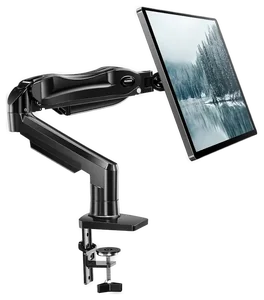
Get your screen and light to eye level: a monitor arm and a bar light that clips to the display cut the neck strain and glare a stacked pile of books never will.
The common mistake: people buy the fun stuff (dock, keyboard, RGB lighting) before fixing the chair and desk, then wonder why their back still hurts.
Uplift V2 Standing Desk — a great desk, but it does the same job as the FlexiSpot we picked for more money; only worth it if you want the wider top choices or the longer warranty.
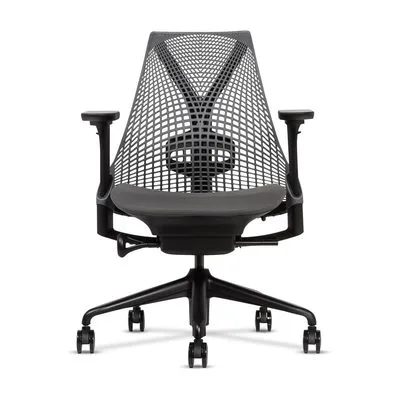
Herman Miller Aeron — the chair everyone points to, but at roughly ten times the Branch it’s hard to justify unless you’re at the desk all day and can find one refurbished.
Logitech MX Keys S — a comfortable low-profile board, but it’s a soft membrane feel; we leaned toward the Keychron for people who want mechanical keys.
Elgato Key Light — worth it if you’re on camera a lot, but it’s overkill and pricey if you just need to see your desk.
Home office FAQs
6 common questions, answered.
What’s the first home office upgrade to buy?
The chair, always, it carries your body for two thousand hours a year. Desk second, lighting third. Peripherals are the fun upgrades after the ergonomics are solved.
Are standing desks good for you?
The evidence supports alternating, not standing all day: switching between sitting and standing reduces back discomfort and afternoon sluggishness. That’s why motorized desks with memory presets beat fixed risers, friction determines whether you switch.
Is a mechanical keyboard worth it for typing work?
If you type most of the day, yes: better feedback, less bottoming-out fatigue, and decades of serviceable life. The Keychron K8 V2 is the standard low-risk entry; if it converts you, the hobby goes as deep as you let it.
What’s the ergonomic setup checklist once the gear arrives?
The ten-minute sequence: chair first (feet flat, knees level with hips, lumbar in the low-back curve), then desk height so elbows bend ninety degrees at the keyboard, then screen top at eye level about an arm’s length away: the laptop-on-desk posture fails every one of these, which is what docks and stands exist to fix. Standing preset goes elbow-height too. Recheck after a week; the first setup is always slightly wrong.
Can I claim any of this on taxes as a home-office expense?
Sometimes, and the distinction matters: self-employed and contractor workers with a dedicated home-office space can generally deduct equipment like this; W-2 remote employees in the US currently can’t (the 2017 changes removed it), though some states differ and employer stipends fill the gap. Keep receipts either way. The rules revisit themselves. This is tax-adjacent trivia, not advice; a preparer answers your actual situation in minutes.
What’s the right upgrade order on a limited budget?
Pain-per-dollar order: chair first if your back complains by 3 p.m. (the highest-stakes 8 hours), desk if you already sit well, then the keyboard-and-mouse pair: the touch points where quality registers hundreds of times daily. The light and dock are quality-of-life multipliers that can trail by months. The classic mistake is buying the desk first because it’s the visible one; your spine votes for the chair.
Sources
Who the write-ups above lean on, and where each one is cited.
TechGearLabCited for Logitech MX Master 3S, and in the buying advice.
WirecutterCited in the buying advice.
RTINGSCited in the buying advice.
23Sep 2026Correction, 23 September 2026FlexiSpot’s E7 is no longer listed on Amazon, so the desk pick is now the FlexiSpot E6 Pro at about $350–500. Branch no longer sells its plain Ergonomic Chair; the seat pick is now the Branch Ergonomic Chair Pro at about $470–520.Every correction we’ve made ›
Prices on this page are re-checked weekly — see the full Office price index for every product we cover.
Keep reading
Where to go next.
The close calls side by side, then related guides.
New guides, re-ranked picks and the month's notable changes. No weekly filler, ever.
Unsubscribe any time. Your address goes to our newsletter provider and nowhere else — see our privacy policy.
Manage Consent
To provide the best experiences, we use technologies like cookies to store and/or access device information. Consenting to these technologies will allow us to process data such as browsing behavior or unique IDs on this site. Not consenting or withdrawing consent, may adversely affect certain features and functions.
Functional
Always active
The technical storage or access is strictly necessary for the legitimate purpose of enabling the use of a specific service explicitly requested by the subscriber or user, or for the sole purpose of carrying out the transmission of a communication over an electronic communications network.
Preferences
The technical storage or access is necessary for the legitimate purpose of storing preferences that are not requested by the subscriber or user.
Statistics
The technical storage or access that is used exclusively for statistical purposes.The technical storage or access that is used exclusively for anonymous statistical purposes. Without a subpoena, voluntary compliance on the part of your Internet Service Provider, or additional records from a third party, information stored or retrieved for this purpose alone cannot usually be used to identify you.
Marketing
The technical storage or access is required to create user profiles to send advertising, or to track the user on a website or across several websites for similar marketing purposes.